

Locations
A location is a place you hire in. It is set up under Settings > Locations, and it is picked on a job opening so visitors can see where the role is and whether it is On Site, Remote or Hybrid.
A user is assigned the locations they work in. A recruiter assigned to one city does not see the applications for another city.
Relations
- Job opening — every job opening is placed at a location.
- User — a user is assigned the locations they work in.
- Career page — visitors read the location on the role.
Creating the location
A location is created under Settings > Locations. What it asks for depends on the Type you pick. A remote location only needs a country.
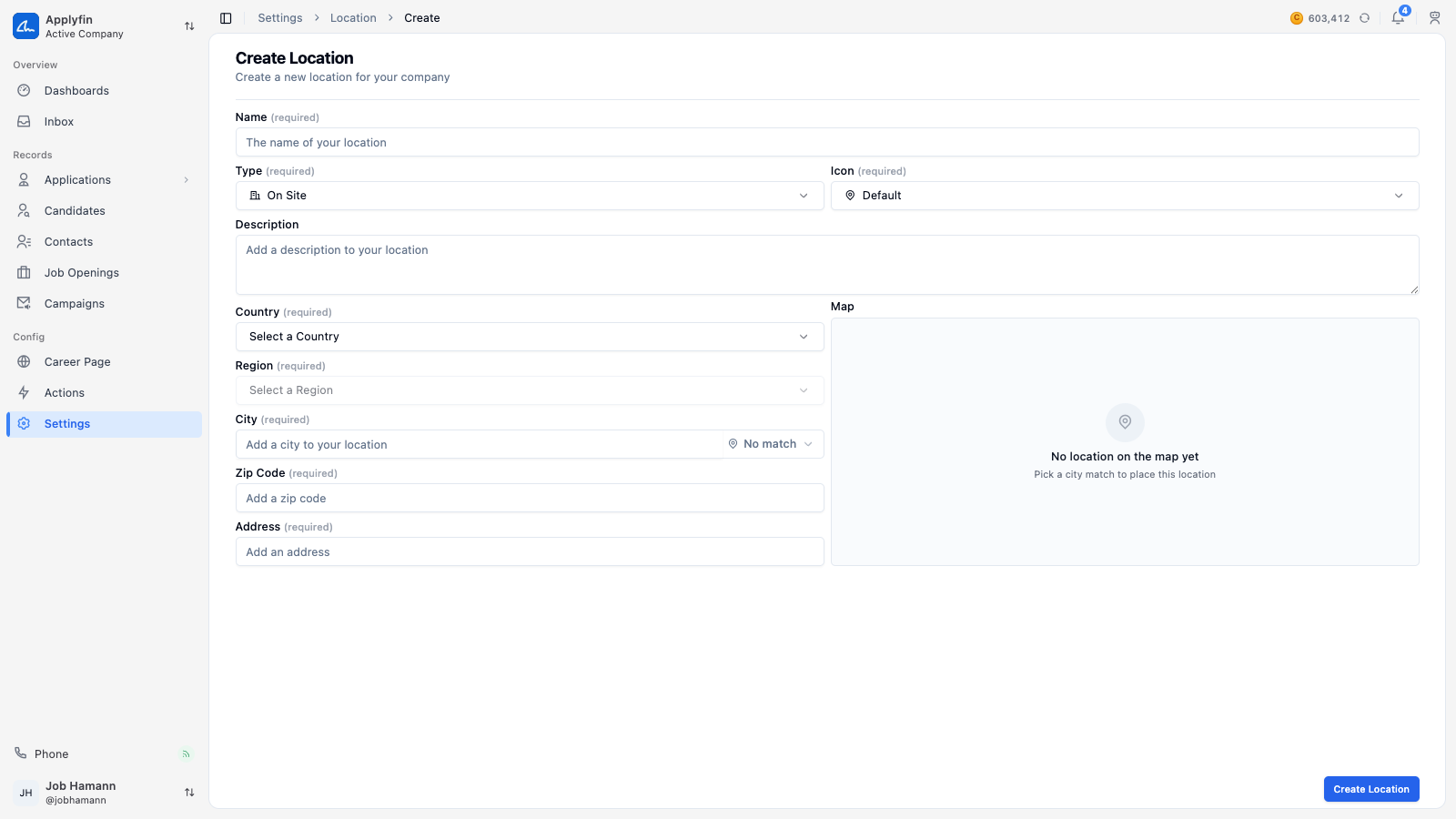
To place a job opening somewhere, create the location first.
- Open Settings > Locations and select Create New.
- Fill in the Name.
- Pick a Type: On Site, Remote or Hybrid.
- Pick an Icon, and write a Description if you want one.
- Pick the Country.
- For On Site and Hybrid, pick the Region and the City, then fill in the Zip Code and the Address.
- Select Create Location.
The location now appears under Settings > Locations, and it can be picked on a job opening.
Translating the location
The career page's location filter shows the location in the language a visitor picks. Open the location and select Translations: its name and description, with one column per language you add.
Select Add locale and pick a language, then fill in its column or select Translate on it to fill it with AI. Translations save on their own and are live on the career page right away. Remove locale in a column's menu removes a language and its translations. A new location is written in the company's language and has no other languages yet; the Source button next to the columns says it is written in one of its other languages. Add the language first.
Assigning a user
A user is assigned to the locations they work in, on the location's Users tab. The assignment decides which roles and applications that user sees.
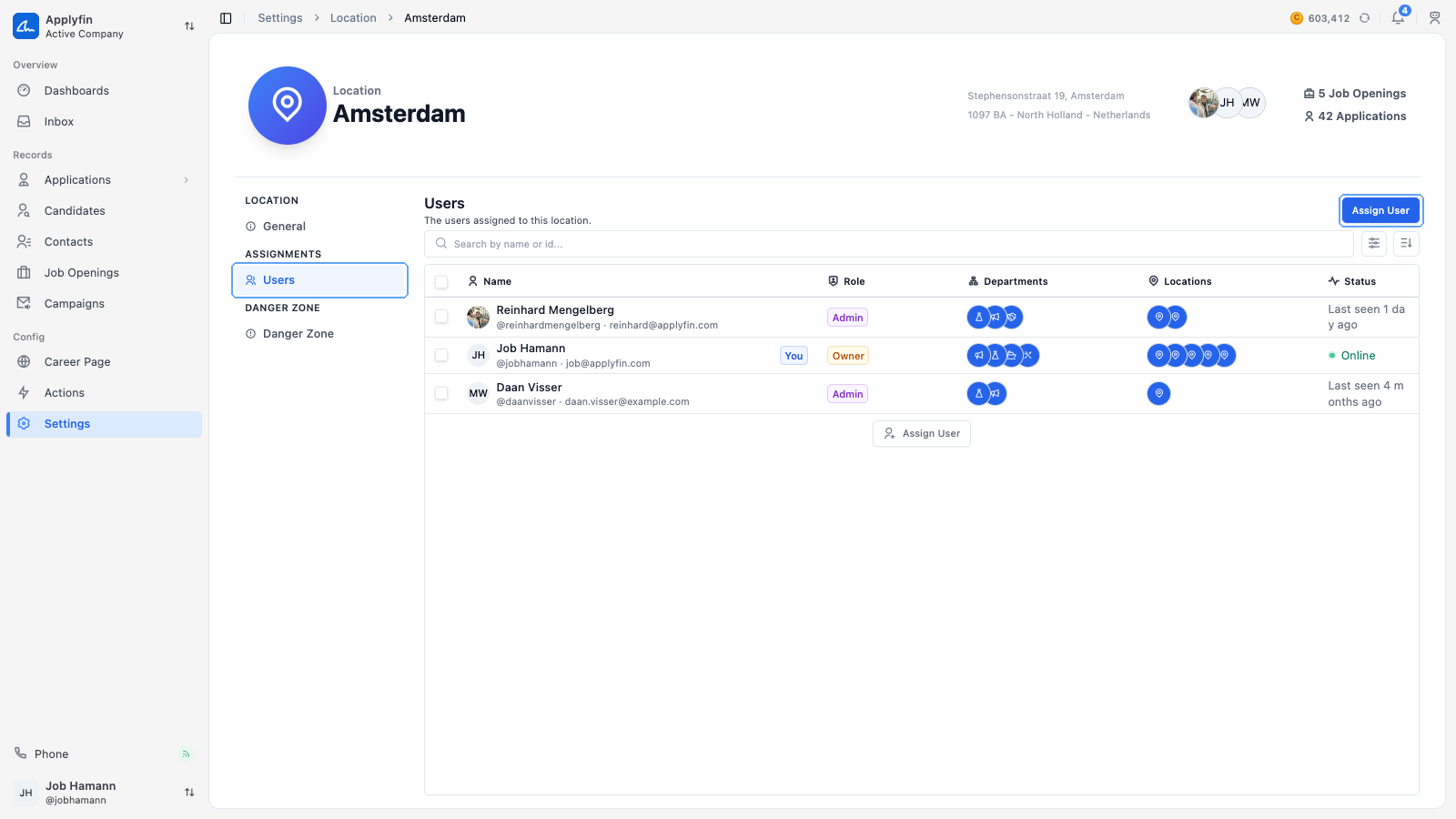
To give a user access to a location's roles and applications, assign them to it.
- Open Settings > Locations and select the location.
- Select Users.
- Select Assign User.
- Find the user, by name or by id.
- Confirm on Assign User.
The user now appears on the Users tab and works in this location.
Unassigning a user
To stop a user working in a location, unassign them.
- Open Settings > Locations, select the location, then select Users.
- Select Unassign on the user's row.
- Confirm on Unassign User.
The user no longer works in this location.